
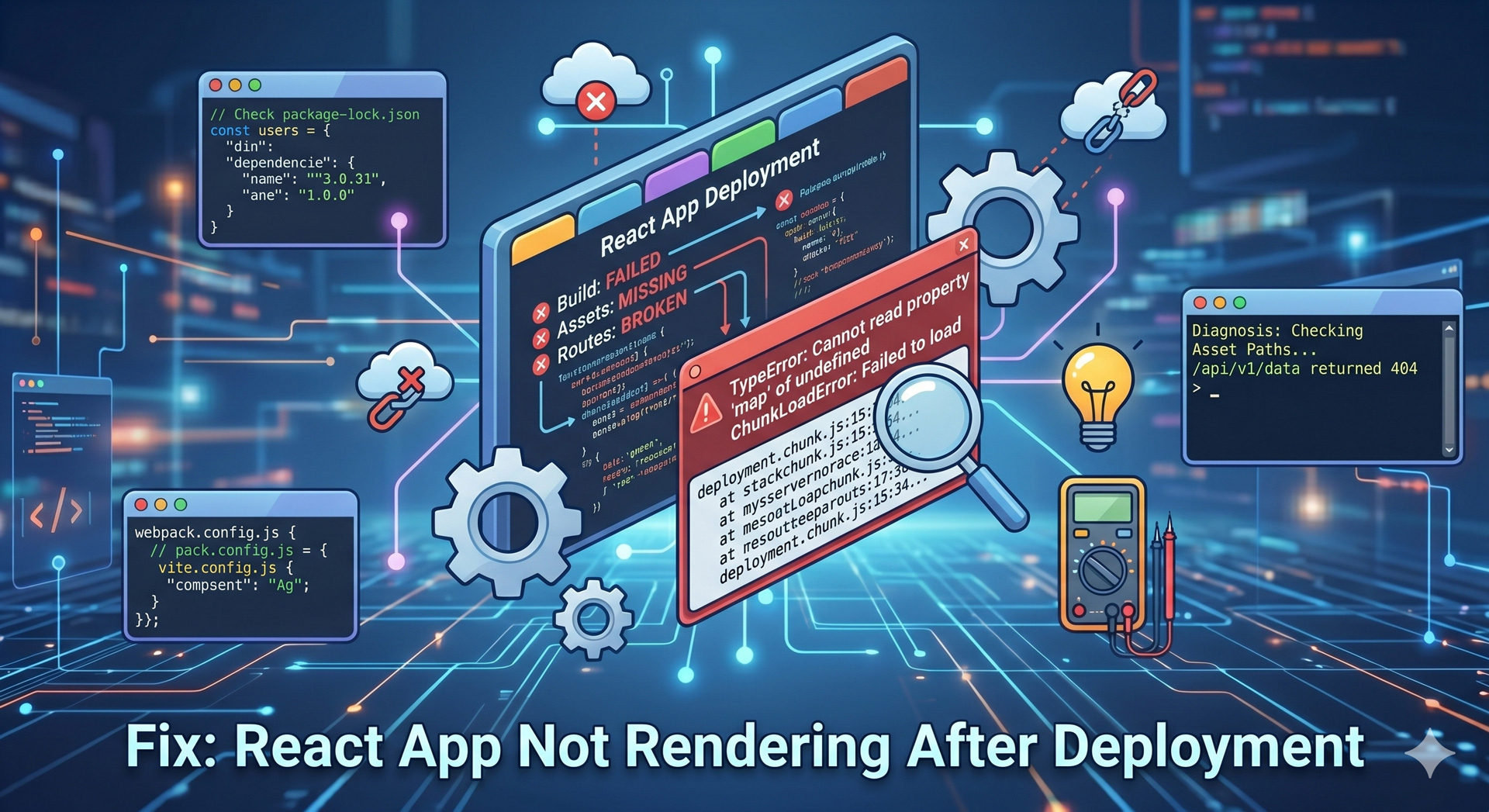
So, you’ve poured your heart and soul into building a fantastic React application. You’ve tested it locally, it works like a charm, and you’re ready to unleash it upon the world. You go through the deployment process, hit refresh on your live URL, and… nothing. Just a stark, white, or worse, a completely blank screen. It’s a scenario that can send shivers down any developer’s spine, turning triumphant deployment into a frustrating debugging session. Don’t panic! A blank screen after deploying your React app is a common hurdle, and thankfully, there are systematic ways to diagnose and fix it.
This article is your guide to navigating those post-deployment blues. We’ll delve into the most frequent culprits behind a blank React app and provide actionable steps to get your masterpiece rendering correctly. Whether you’re using Netlify, Vercel, AWS S3, or any other hosting platform, the underlying principles of debugging a client-side rendered React app remain largely the same. We’ll cover everything from build configurations to network requests, equipping you with the knowledge to banish that dreaded blank screen for good.
Let’s face it, seeing a blank page where your vibrant UI should be is disheartening. But understanding why it’s happening is the first step to solving it. Often, the issue isn’t a fundamental flaw in your React code itself, but rather a misconfiguration during the build or deployment process, or even something as simple as a network hiccup. This guide aims to demystify these common problems and empower you to confidently tackle them.
Blank Screen? React Deploy Fixes
Build Configuration Woes
One of the most common reasons for a blank React app after deployment is an incorrect build configuration. When you run npm run build or yarn build, React generates optimized static files for production. If your package.json has specific build scripts or if your hosting provider requires particular settings, a misconfiguration here can lead to broken assets or an app that simply doesn’t know where to start. This could manifest as missing JavaScript bundles, incorrect paths for your static files, or even the build process failing silently.
Pay close attention to your homepage field in package.json if you’re not deploying to the root of your domain. For example, if your app is hosted at yourdomain.com/my-app, you need to set "homepage": "/my-app" in your package.json. This tells Create React App (or your bundler) to correctly generate relative paths for your assets, preventing them from being 404ed. Similarly, if you’re using a custom Webpack configuration, ensure that publicPath is set appropriately to match your deployment environment.
Furthermore, some hosting platforms might have specific environment variables or build settings that need to be configured. For instance, if your app relies on environment variables for API keys or feature flags, make sure these are correctly set in your hosting provider’s dashboard. A build that works locally but fails in production might be due to these missing or incorrectly configured variables, leading to runtime errors that prevent rendering.
Routing Issues in Production
Client-side routing, a staple of modern React applications, can sometimes be a source of blank screens post-deployment, especially if you’re not using a static site generator or server-side rendering. When a user directly navigates to a specific route (e.g., yourdomain.com/about) or refreshes the page on such a route, the server might not know how to handle it. It typically looks for an index.html file, and if it doesn’t find a specific file for /about, it might return a 404 error or a generic "not found" page, which can appear blank to your React app.
The standard solution for this is to configure your hosting provider to redirect all requests that don’t match a static file to your index.html. This allows your React application to load and then its router (like React Router) to take over and render the correct component based on the URL. For platforms like Netlify, this is often handled with a _redirects file or netlify.toml configuration. For Vercel, it’s usually handled automatically for Next.js apps or through a vercel.json file.
If you’re hosting on something like AWS S3 with CloudFront, you’ll need to configure CloudFront to use your index.html as the error document for 404 errors and as the default root object. This ensures that even if a direct route request fails to find a specific file, your React app is still served, giving your router a chance to handle the routing logic. Always consult your hosting provider’s documentation for the most accurate configuration steps for client-side routing.
Network and Asset Loading Problems
Even if your build is correct and your routing is set up, a blank screen can occur if your browser can’t download the necessary JavaScript and CSS files. This is often due to network issues, incorrect file paths, or content security policy (CSP) restrictions. When your browser tries to load your application, it makes requests for various assets. If these requests fail, your app won’t be able to execute and render.
The first place to check is your browser’s developer console. Look for 404 errors (Not Found) in the Network tab. These errors indicate that the browser couldn’t find a specific file at the requested URL. This could be due to the publicPath issue mentioned earlier, or perhaps your build process is outputting files to a directory that your hosting isn’t configured to serve. Also, check for any JavaScript errors in the Console tab, as these can halt script execution and prevent rendering.
Another common culprit is Content Security Policy (CSP) headers. If your server is sending overly restrictive CSP headers, it might block your browser from loading JavaScript files from certain origins, even if they are your own. Ensure your CSP is configured to allow the necessary script sources. If you’re using a CDN, double-check that it’s correctly configured and serving your assets. Sometimes, a simple browser cache clear can also resolve issues if an older version of your app is being served.
Debugging Your Empty React App
Inspecting the Browser’s Developer Tools
Your browser’s developer tools are your best friends when it comes to diagnosing a blank React app. The Console tab is the first place to look. It will often reveal JavaScript errors that are preventing your application from initializing or rendering. Even if you see no errors initially, try forcing a refresh (Ctrl+Shift+R or Cmd+Shift+R) to ensure you’re loading the latest version of your app’s assets. Sometimes, a subtle error might only appear after a full page reload.
The Network tab is equally crucial. After a refresh, examine the requests being made. Look for any requests that are returning a 404 (Not Found) status code. These usually indicate that your JavaScript bundles, CSS files, or other assets are not being served correctly by your hosting provider. Pay attention to the URLs of these failed requests – they can often point to misconfigurations in your build or routing setup, especially if they are relative paths that are incorrectly resolved in the production environment.
Furthermore, the Elements tab can provide clues. While it might be empty if your app isn’t rendering, sometimes you might find a minimal HTML structure. If you see a “ element, it means your basic HTML is loading, but your JavaScript hasn’t been executed to populate it. If even that isn’t present, it suggests a problem with the initial HTML file itself being served. Debugging effectively involves systematically checking each of these tools.
Checking Server Logs and Hosting Configurations
Beyond your browser, your hosting provider’s server logs and configuration settings are essential for deeper debugging. If your application is failing to initialize, it might be due to server-side errors during the build process or runtime issues that are logged by the server. Accessing these logs, if your hosting platform provides them, can reveal critical information about why your app isn’t being served correctly. For example, a build script failing on the server due to missing dependencies or environment variables will be reflected here.
Review your hosting provider’s specific configuration for static site hosting. Are you pointing to the correct build output directory? Is the index.html file being served as the primary entry point? Platforms like Netlify, Vercel, and AWS S3 often have detailed documentation on how to set up React applications, including routing and build settings. Ensure your configuration aligns with their best practices for client-side rendered applications.
For serverless functions or backend integrations, check those logs as well. If your React app relies on data fetched from a backend, and that backend is encountering errors, it could indirectly lead to a blank or incomplete frontend. Understanding how your deployment environment handles static assets and dynamic content is key to resolving these issues. Don’t underestimate the power of consulting your provider’s documentation – it’s often the quickest way to find specific solutions.
Verifying Build Artifacts Locally
Before diving too deep into server configurations, it’s a good practice to verify your build artifacts locally. After running your build command (e.g., npm run build), a build or dist folder will be created in your project. You can often serve these static files locally using a simple static file server (like serve from npm) to mimic how your hosting environment will serve them. This helps isolate whether the issue lies within the build process itself or the deployment environment.
To do this, install a static server package globally: npm install -g serve. Then, navigate to your project’s root directory in your terminal and run serve -s build (replace build with your output directory if it’s different). Open your browser to the provided local URL (usually http://localhost:3000). If your app appears blank even when served locally from the build folder, it strongly suggests a problem with your build configuration, code, or dependencies.
This local check is invaluable. If it works locally from the build folder but fails on your live deployment, you can be more confident that the issue is related to your hosting environment, server configuration, or network. Conversely, if it’s blank even when served locally from the build, you know to focus your efforts on your build script, Webpack configuration, or the React code itself. This systematic approach helps you pinpoint the problem efficiently.
Encountering a blank screen after deploying your React app can be a frustrating experience, but it’s rarely an insurmountable one. By systematically approaching the problem, starting with the most common culprits, you can efficiently diagnose and resolve the issue. We’ve explored how build configurations, routing setups, and network asset loading can all contribute to this problem, and importantly, how to use your browser’s developer tools, server logs, and local build verification to pinpoint the root cause.
Remember that the deployment environment often differs from your local development setup. Differences in server configurations, environment variables, and how static assets are served can all play a role. Always consult your hosting provider’s documentation, as they often have specific guides tailored to deploying single-page applications like those built with React. With a bit of patience and methodical debugging, you’ll have your React app running smoothly in no time.
Don’t let that blank screen deter you! It’s a learning opportunity that hones your debugging skills and deepens your understanding of the deployment pipeline. By following the steps outlined in this article, you’ll be well-equipped to tackle this common deployment hurdle and ensure your React applications shine brightly on the web. Happy coding, and happy deploying!