
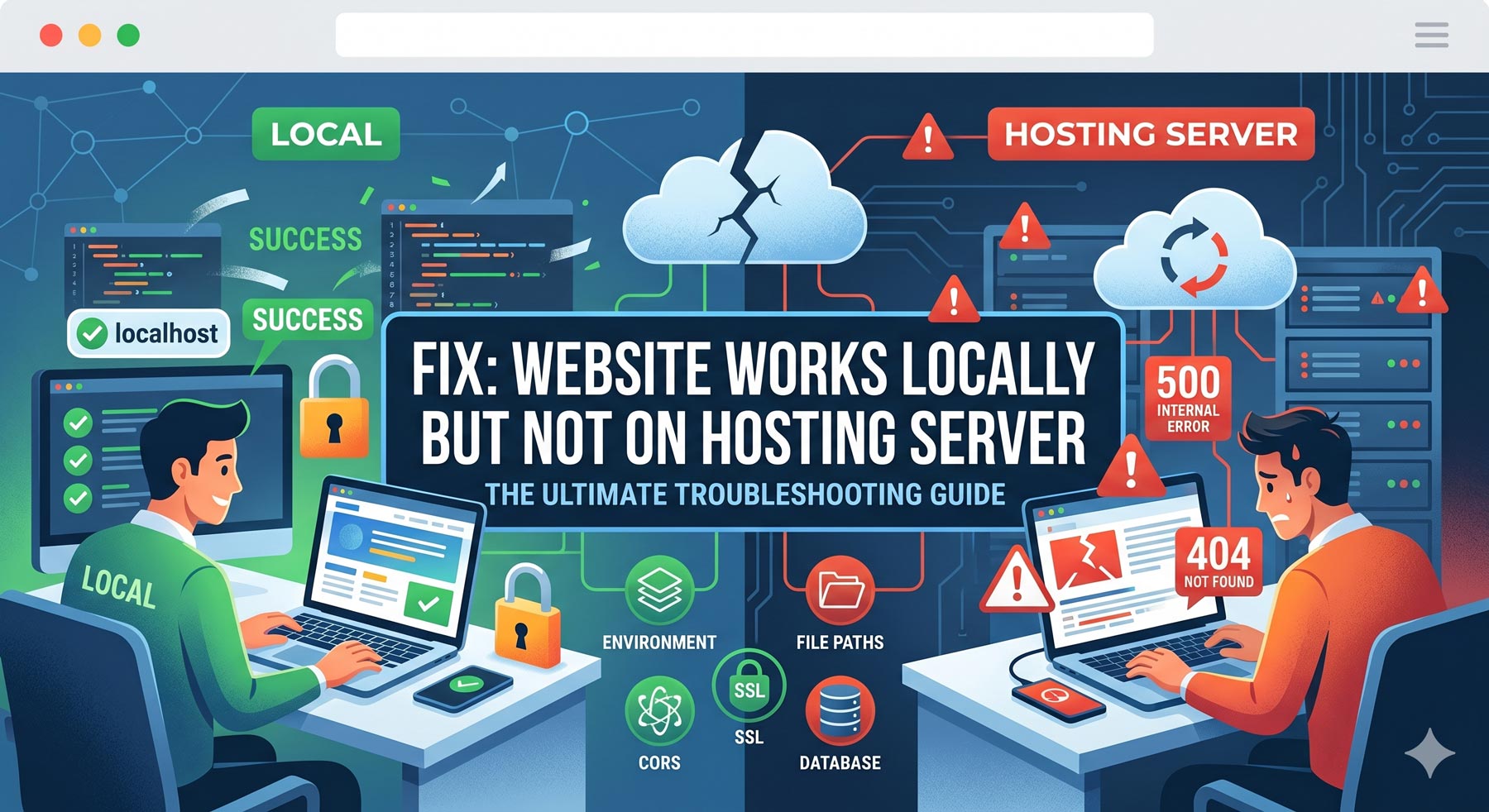
It is the ultimate developer jump-scare: Your web application runs flawlessly on localhost. The animations are smooth, the database queries are instant, and everything is green.
Then, you push to production, hit refresh on your live URL, and get slapped with a 500 Internal Server Error, a 404 Not Found, or worse—a completely blank white screen.
When a website works locally but breaks on a hosting server, it almost always boils down to a disconnect between your machine and the server environment. This guide breaks down the exact reasons why this happens and provides the concrete fixes to get your live site up and running right now.
1. Case Sensitivity & Broken File Paths (Linux vs. Windows/macOS)
If your local machine runs Windows or macOS, your file system is generally case-insensitive. Linux servers (which power 90%+ of web hosting) are strictly case-sensitive.
-
The Problem: In your local code, you imported a component or linked an asset like this:
JavaScriptimport Navbar from './components/navbar';If your actual file name on disk is
Navbar.js(with a capital N), Windows will find it perfectly on localhost. The live Linux server will throw a404 Not Foundor a fatal build error becausenavbarandNavbarare two completely different files. -
The Fix:
-
Audit your image assets, CSS files, and component imports. Ensure the casing in your code matches the exact filename perfectly.
-
Avoid Hardcoded Absolute Paths: Never use absolute machine paths like
C:/Users/Project/assets/. Always use relative paths (./assets/) or dynamic base path variables (like Node’s__dirnameor WordPress’sget_stylesheet_directory_uri()).
-
2. Hidden Environment Variables (.env Missing)
This is the number one reason backend applications or React/Next.js apps crash instantly upon deployment.
-
The Problem: Locally, your database credentials, JWT secrets, and API keys live safely inside a
.envfile. Because.envis (rightfully) included in your.gitignorefile, it never gets pushed to GitHub or uploaded via FTP to your hosting server. When the live code tries to boot up, it readsprocess.env.DB_HOSTasundefinedand crashes the server. -
The Fix:
-
If on a VPS/Cloud (Render, Vercel, Heroku, AWS): Go to your project dashboard, find the Environment Variables or Config Vars setting, and manually paste your key-value pairs there.
-
If on Shared Hosting (cPanel): If you are running a Node.js dashboard application via cPanel, look for the “Setup Node.js App” section where you can input environment variables directly into the GUI.
-
3. Server Configuration & URL Rewriting (.htaccess vs. nginx.conf)
If your home page loads but clicking any internal link gives you a 404 error, your web server doesn’t know how to handle routing.
-
The Problem: Modern frameworks (React Router, Vue Router, WordPress pretty permalinks) rely on a single entry point (usually
index.htmlorindex.php). The server needs explicit instructions to route all traffic through that file. -
The Fix:
-
For Apache Servers (cPanel/Shared Hosting): Ensure you have a
.htaccessfile in your root folder. For a single-page application (SPA), it must look like this:
-
        RewriteEngine On
        RewriteBase /
        RewriteRule ^index\.html$ - [L]
        RewriteCond %{REQUEST_FILENAME} !-f
        RewriteCond %{REQUEST_FILENAME} !-d
        RewriteRule . /index.html [L]
        ```
    *   **For Nginx Servers:** Your server block requires the `try_files` directive:
        ```nginx
        location / {
            try_files $uri $uri/ /index.html;
        }
        ```

---

## 4. Runtime Runtime & Database Version Mismatches
Your code might be using modern features that your hosting environment simply cannot comprehend yet.

*   **The Problem:** You built your app locally using **Node.js v20** or **PHP 8.3**. Your shared hosting environment might still be defaulting to **PHP 7.4** or an outdated Node LTS version. If your code utilizes modern syntax (like PHP 8 nullsafe operators or specific Node modules), the live server will throw a `500 Internal Server Error`.
*   **The Fix:**
    *   **Check Local Versions:** Run `node -v` or `php -v` in your local terminal.
    *   **Match Hosting Server:** Log into your hosting control panel. Search for **"Select PHP Version"** or **"Node.js Manager"** and toggle the version dropdown to match your local development machine exactly.

---

## 5. Strict Directory Permissions (`CHMOD`)
Locally, your operating system gives your local server environment broad admin rights to read and write files. Production servers are locked down tight for security.

*   **The Problem:** Your application needs to upload user avatars or generate a cached log file, but the hosting server blocks the action, resulting in a silent failure or a permissions crash.
*   **The Fix:**
    *   Connect to your server via SFTP or open the cPanel File Manager.
    *   Right-click the target folder (e.g., `uploads/` or `cache/`) and view its permissions.
    *   Web directories should typically be set to **`755`** for folders and **`644`** for individual files. Never set a folder to `777` on a live server, as this creates massive security vulnerabilities.

---

### 🛡️ Quick Triage Checklist: What to do right now
If you are staring at a broken live site this exact second, follow these steps in order:
1. **Turn on Debug Mode:** If it's a WordPress site, change `define('WP_DEBUG', false);` to `true` in `wp-config.php`. If it's a Node/Express app, check your console logs via SSH using `pm2 logs` or your hosting dashboard log viewer. **Never guess the error; read the logs.**
2. **Clear Server Cache:** Clear Cloudflare, your hosting provider's built-in Varnish cache, and your browser cache (`Ctrl + F5`).
3. **Inspect the Network Tab:** Open your browser's Developer Tools (`F12`), head to the **Network** tab, and reload the page. Look at the red failing requests—they will tell you exactly which files are failing to load.
4. The Production Wall: Cross-Origin Resource Sharing (CORS)
When you are working locally, your frontend and backend talk to each other like next-door neighbors. They are both running on your machine, so your browser trusts their communication implicitly.
-
The Problem: The moment you move your site to a live hosting server, the security ecosystem changes entirely. Browsers enforce a strict safety protocol called CORS. If your frontend application lives on one server and tries to pull data from an API hosted on another server, the browser will instantly block the request for safety unless explicitly told otherwise. Your app works flawlessly on your machine, but on the live web, your data calls fail silently.
-
The Fix: You must log into your backend server configuration or dashboard and update the allowed origins list. You need to explicitly tell your backend code to accept incoming web requests from your exact live domain name.
5. The Insecure Asset Trap (Mixed Content Errors)
You successfully installed an SSL certificate on your live server, and the secure green padlock is visible in your browser bar. Yet, your site looks completely broken—fonts are missing, styles are warped, and images refuse to load.
-
The Problem: This is caused by “Mixed Content.” While your main website loads securely over
https://, somewhere inside your code or database, you have assets linked using the old insecurehttp://format. If your code tells the browser to fetch a font or an image from an insecure link, the browser will completely block that specific asset to protect user security. -
The Fix: You need to audit your asset links. If you are using a content management system like WordPress, you must run a database search-and-replace to update your old local web addresses to your new secure live web address. Every single stylesheet, script, and image link must match the secure protocol of your live server.
6. Database Isolation and User Restrictions
On your local computer, your development environment usually grants your code absolute freedom. Your database probably connects using a master user account with no password, and your site can read and write data across the system without a second thought.
-
The Problem: Live hosting servers are hardened for security. They isolate databases strictly. A live server will never allow a blank password, nor will it allow a generic connection. If your code tries to access the live database using local credentials, or if the database server expects connections from a specific secure network address rather than a standard internal link, the connection will time out immediately.
-
The Fix: You must create a unique, dedicated database user inside your hosting control panel, assign it a highly secure password, and grant that specific user explicit permissions to access your database. Double-check your hosting provider’s documentation to see if they require a specific server address for database connections.
🚀 Post-Deployment Sanity Checklist
Before you close your laptop and declare the job finished, run through this quick baseline checklist on your live website:
-
Test Every Form: Submit your contact forms, login screens, and checkout paths. Ensure the data actually arrives where it belongs instead of disappearing into a void.
-
The Console Clean Sweep: Open your browser’s developer tools and look at the error log tab. Ensure it is completely clear of red warning lines.
-
Hide Your Technical Logs: Once your bugs are squashed, remember to turn off “Debug Mode” or change your site status from “Development” to “Production.” Leaving detailed error logs visible on a live site gives malicious actors a direct roadmap of your server’s inner workings.